After the first month working on Openbravo Mobile, here´s a little update in pictures on the progress. At the bottom you will find links to a clickable mockup you can play with. Enjoy and let us know what you think.
First, we had to change our mindset from PC to mobile. My first thought was: "How is Openbravo 3 ever going to fit on a mobile device without losing the great user experience?"

Then we dedicated some weeks to analysis, sketching and playing with phones, pads and every device we could lay our hands on:

It became clear that we had to reduce the PC GUI radically and focus on the basics: Lists and contextual actions. Here´s an example of how a sales person would book an order on an iPad:

We also learned that it is important to offer actionable information. Don´t ask users to go out there and find it but bring it to them! Here´s a director reading updates about his team and commenting on an action:

We realized that mobile ERP is all about browsing, viewing, filtering and applying actions. Now let's see this in action. Here´s a clickable scenario for mobile phones. Here´s a clickable scenario for tablets.

Note that these are just mock-ups without any visual design or coding done yet. In this stage everything is still possible, so don't hesitate to tell us what you think via Google+, Facebook or an old-fashioned email to yours truly (rob.goris at you-know-which-company)
UPDATE: The second iteration for tablet and mobile can be found here and here.
Openbravo Mobile - Idea Phase
Tuesday, November 15, 2011
Personalization
Monday, October 31, 2011
Summary: Every industry, company and business process is different. That´s why it is so important that an ERP system can be customized to specific needs. But what about personalization on user level? Here´s how we do it in Openbravo 3.
Openbravo uses a model-driven approach to describe functionality in business rules (rather than code), making it easy to configure and extend. Together with modularity, open source technology and a modern web-based architecture, Openbravo 3 is easy to customize and extend at any point in time.
This is all great stuff but, as often happens with ERP implementations, the end user is often overlooked. As soon as the smart suited implementation consultants have left the building, the real users start entering their sales orders, goods shipments and payments only to realize that the windows they need to complete are not exactly how they wanted it. Maybe the first couple of fields that are shown on the form are not important to the user because the defaults are always the same. Or the order in which to fill out the form is just a bit different than how the implementation consultants had prepared it. Or the default grids show all records so every time again the same filter needs to be applied. All small things that add up and can make a difference in being highly productive or being annoyed.
So how do we solve this? Do we need to call in the guys who implemented the ERP?
The solution is much easier. Openbravo 3 now offers personalization of windows, grids and filters on user, role, client and organizational level. With form & grid personalization plus the ability to save views including filters and layout, users can fine tune their environment. Let´s see how you can use this.
Personalizing Forms
Launch the Form Builder by clicking the wrench button in the toolbar. On the left hand side you see a list of the available fields for the window. You can drag & drop these fields in the list to change the order in which they appear on the form and set their visibility (of course this is only when a field is not mandatory to fill out). Many forms have different sections and it is recommendable to move less-frequently used forms into the More Information section, so they won´t bother you at first sight. You can also move fields into the status bar area. They will then appear as read-only values on top of the form which is ideal for attributes such as totals or document status.

The preview pane on the right updates with every change, showing you how the real form is going to look like. In the little properties pane on the bottom left you can set the width and the height of the fields. You can also decide here whether the field should start on a new row and whether it will need to have the first focus.
Personalizing Grids
Grids can be personalized in the following ways:
- Column visibility (right mouse click on column header)
- Column order (drag & drop column headers to a new position)
- Column widths (drag the borders of the column header)
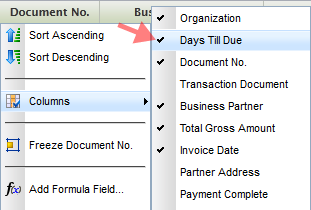
These settings are stored on closing the tab. So next time you open a tab of a certain window type you will get the same grid state as how you have left it. This is convenient in many but not all cases. That´s why we now also introduce saving views.
Saving Views
Saving Views stores grid and form settings, column filters and even the entire layout of the screen, for example the position of the splitterbar between the header and lines. So imagine that you rearranged your grid and it´s perfectly adapted to your task. You even added some column filters, for example you only want to see invoices that are more than 21 days overdue for organization East Coast. Now you save all this in one go using a name. Now when you need to work on another task that needs other filters and grid or form settings, you can easily retrieve this view later.

As well as you let your people adjust their office chair you should let them adjust their ERP to their needs. With Openbravo 3 Personalization this can all be done - without the smart suited consultants. And do not worry if you happen to be one of those consultants: You can also benefit by being able to easily personalize/customize views for your customers and store them on higher aggregation levels.
Test drive personalization on demo.openbravo.com and read more about it in the user manual. RP8RFDV98YUM
Openbravo 3 for Mobile
Friday, September 23, 2011
As a prelude to the roadmap 2011-12 that will be published in the next few days, let me reveal one of the many exciting things we plan to do: A touch/mobile interface for Openbravo 3.

(Credit: US PTO/Apple)
The advantages are clear. A mobile enterprise can benefit from a higher workforce productivity - up to 45% [1], faster decision-making and increased employee satisfaction.
Openbravo 3 has a highly sophisticated architecture where the GUI is defined in metadata. This allows us to easily optimize the GUI for smaller screens and touch interfaces.
Simplification is critical in designing for touch/mobile. Too often mobile apps or sites try to mimic their desktop siblings without looking at the specific opportunities and constraints of mobile devices. We intend not to do the same.
At this point I´m trying to get a grip on which business tasks are essential for mobile. We aim to make all functionality of Openbravo 3 accessible through mobile devices but at the same time we need to make sure that the user experience of the key flows is superb. Let´s focus on what´s important first.
Here are some examples of tasks that could be candidates:
- A manager approving employee expenses while traveling
- A sales rep placing an order together with the customer
- A sales director checking the sales figures before a meeting with his team
- A CFO checking the financial health of the company in a chart in a widget on his mobile phone
- A shop owner using her tablet as both a POS and ERP
- A warehouse person picking orders using his tablet
- A sales rep being notified that a customer placed an order that cannot be delivered because it is out of stock
Now I´d like to know what would be the typical tasks for your business (or your customer) while away from the desk.
Throw your ideas at us in the comments, via Google+ or Facebook, thanks!
[1] bfrench:"Survey: Mobile Apps Increase Enterprise Performance and Productivity Advantages, Top Three Mobile App Strategies Gain Momentum". iPad CTO. Retrieved 8/11/2011.
Openbravo 3 in Two Minutes
Sunday, September 4, 2011
A super short video that shows why Openbravo 3 is so cool :-)
Quick Pick: a new design pattern for order line reuse
Monday, July 11, 2011
We´re working on a redesign of the Copy Lines & Copy From Order flows. After a few iterations, here is the first draft.

The two scenarios only differ in that one has a preview area and the other does not.
Let me know if this would work for you and your customers. Leave comments below the images in the web album or on the UX Lab forum on Forge.
Lost in The Grid (No More)
Wednesday, July 6, 2011
We noticed that with lots of filtering and scrolling in the grid, you might lose track of your selected row(s). You could scroll up and down to look them up, but this could become tedious when you have hundreds of rows. Sometimes the simplest solutions are the best. Here´s what we did.
So you got this invoice selected in the grid. It is highlighted in orange.

You now decide to filter the grid to look for all "East Coast" invoices that have status "Payment Complete = No".

Ok, cool. We´re done with that and clear the filters. Hang on, where did my selected row go? It must have scrolled outside the visible area.

To get the selected row back in the visible area, we simply click on the selected-row-counter button.

And the selected row moves back in the view port!

Lost-No-More will be available in maintenance pack 1 (Openbravo 3-MP1) due for end of next week.
Painting the Town Red
Pamplona might be known for as the home of Openbravo but it is probably better known for its yearly San Fermin festival where millions of people gather to watch the famous encierro, the running of the bulls.
So if you wonder why the demo.openbravo.com login screen suddenly turned red or why we seem to be in a festive mood this week, it is probably because of San Fermin.
A special thanks to Miguel Rodriguez Font who created the bull logo.